What is a motherboard the essential guide to modern computing
Table of Contents
- The Motherboard as the Central Nervous System of Computers
- Motherboard Form Factors and Their Specialized Applications
- Physical Design and Material Composition: Balancing Performance and Durability
- Data Buses and Chipsets: The Highways of Motherboard Communication
- Key Components of a Motherboard: The Backbone of System Architecture
- CPU Socket and Compatibility Standards
- RAM Slots and Memory Architecture
- Expansion Slots: PCIe and Peripheral Connectivity
- Chipset: The Data Traffic Controller
- VRM Design: Power Delivery and Thermal Efficiency
- BIOS/UEFI Firmware: The System’s Boot and Configuration Hub
- Integrated vs. Dedicated Graphics: Performance Trade-offs
- Storage Interfaces: M.2, SATA, and Beyond
- Motherboard Chipsets: The Unsung Heroes of System Performance
- Chipset Functions and System Architecture Integration
- Popular Chipset Families and Their Target Audiences
- PCIe Lane Allocation and Connectivity Features
- Chipset Generations and CPU Compatibility
- Advanced Technologies Enabled by Chipsets
- Comparative Analysis: Intel vs. AMD Chipsets
- Motherboard Features Tailored to User Needs
- Gaming Motherboards: Power, Speed, and Aesthetics
- Professional Workstations: Precision and Productivity
- Budget Motherboards: Value Without Compromise
- Content Creator Motherboards: Speed and Connectivity
- Server and Workstation Motherboards: Reliability and Redundancy
- Enthusiast Motherboards: Overclocking and Customization
- Motherboard Compatibility and Upgradability
- CPU-Motherboard Compatibility and Socket Types
- RAM Compatibility and Motherboard Specifications
- GPU Compatibility and PCIe Slot Considerations
- Motherboard Upgrade Paths and BIOS Limitations
- Real-World Upgrade Scenarios and Case Studies
- Troubleshooting and Maintenance of Motherboards: Ensuring Longevity and Performance
- Diagnosing Common Motherboard Issues: A Systematic Checklist
- Safe Handling of Motherboards: Preventing Static Damage
- Cleaning a Motherboard: Removing Dust Without Causing Damage
- Updating Motherboard BIOS/UEFI Firmware: Risks and Recovery
- Reseating Components: Resolving Connectivity and Performance Issues
- Emerging Trends and Future of Motherboard Technology
- Next-Generation Memory and Connectivity Standards
- AI and Machine Learning Integration in Motherboards
- Compact Form Factors and Small-Form-Factor (SFF) Builds
- Advanced Cooling Solutions for Enhanced Performance
- Future-Proofing with USB4, 10G Ethernet, and NVMe 2.0
- Quantum Computing and Beyond: The Next Frontier
- Motherboard Buying Guide: Strategic Selection for Performance and Value
- Key Factors Influencing Motherboard Selection
- Decoding Specifications and Avoiding Marketing Pitfalls
- Motherboard Customization and Overclocking
- Fundamentals of Overclocking: VRMs, BIOS Settings, and Cooling
- Step-by-Step Guide to Safely Overclocking CPU and RAM
- Advanced Overclocking Techniques and Stress Testing
- Monitoring Temperatures and Voltages
- Risks of Overclocking and Mitigation Strategies
- Recommended Motherboards for Overclocking
- Motherboard in Specialized Systems: Tailoring Hardware for Unique Demands
- Embedded Systems: Compact Powerhouses for Precision Applications
- Industrial Motherboards: Engineering for Harsh Environments
- Server and Data Center Motherboards: The Backbone of Digital Infrastructure
- Gaming Consoles: Proprietary Designs for Seamless Entertainment
- Automotive and IoT Motherboards: Connectivity at the Edge
- Supercomputing and HPC Motherboards: Scaling Beyond Consumer Limits
The motherboard stands as the silent architect of every computer system, a complex network of circuits and components that orchestrates the symphony of hardware functionality. Without it, CPUs would lack direction, RAM would float in isolation, and GPUs would remain powerless to render visuals—much like a human body without a nervous system. This printed circuit board, often overlooked amid the flashier components like graphics cards or high-end processors, serves as the backbone that binds together disparate elements into a cohesive unit capable of executing tasks from simple web browsing to complex AI computations.
From the bulky mainframes of the 1960s to today’s sleek DDR5-equipped boards, motherboards have undergone a revolutionary transformation. Early designs relied on discrete components and limited connectivity, while modern iterations integrate advanced chipsets, high-speed data buses, and AI-driven optimizations. Whether it’s an ATX powerhouse for gaming rigs or a nano-ITX board for compact embedded systems, the motherboard’s role evolves with technological demands. Understanding its intricacies—from chipset compatibility to overclocking potential—is essential for anyone seeking to build, upgrade, or troubleshoot a system that pushes the boundaries of performance.
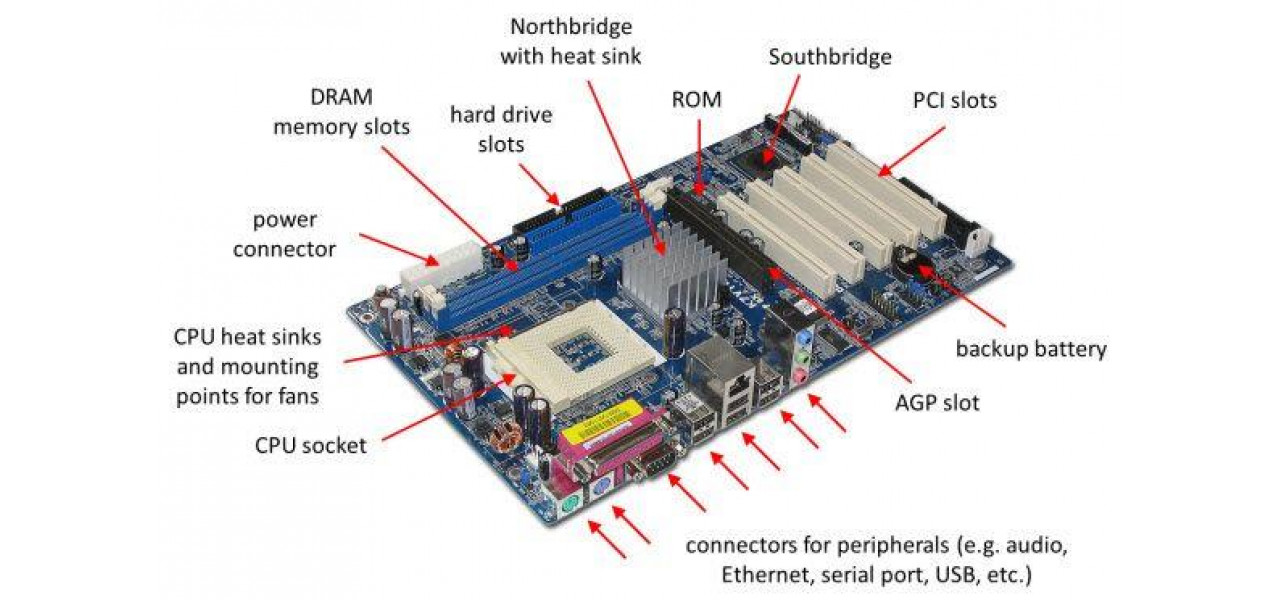
The Motherboard as the Central Nervous System of Computers

The motherboard serves as the foundational platform that orchestrates the seamless interaction between a computer’s critical components, akin to the human nervous system connecting the brain, muscles, and organs. Without this intricate network of circuits and pathways, individual hardware elements—such as the CPU, GPU, and RAM—would operate in isolation, rendering the system functionally inert. Historically, motherboards trace their origins to the bulky mainframe systems of the 1940s and 1950s, where discrete components were wired manually on large chassis. The advent of Printed Circuit Boards (PCBs) in the 1960s revolutionized design by embedding conductive pathways onto insulating boards, drastically reducing size and complexity. By the 1980s, the IBM PC standard popularized modular motherboards, enabling compatibility across systems and accelerating technological evolution. Today, motherboards integrate system-on-chip (SoC) architectures, multi-core processors, and high-speed interfaces to support everything from gaming rigs to AI-driven supercomputers.
The motherboard’s role extends beyond mere connectivity; it acts as a central hub that regulates data flow, power distribution, and thermal management. Through chipsets—sets of integrated circuits that govern communication between the CPU, memory, and peripherals—the motherboard ensures efficient data transfer via front-side buses (FSB), PCIe lanes, and memory channels. For instance, a modern Intel Z790 chipset may support DDR5 RAM, PCIe 5.0 slots, and Thunderbolt 4, enabling high-bandwidth operations for graphics rendering and storage devices. This integration is critical for maintaining system stability, as bottlenecks in data pathways can degrade performance, much like neural blockages impair cognitive function.

Motherboard Form Factors and Their Specialized Applications
Motherboard form factors define the physical dimensions, expansion capabilities, and target use cases, directly influencing system scalability and power efficiency. The choice of form factor often depends on space constraints, budget, and performance requirements, with each variant optimized for specific applications—from compact home theaters to high-end workstations.
The following table outlines the most prevalent form factors, their dimensions, and compatibility profiles, sourced from industry standards like ATX International and Mini-ITX specifications:
| Form Factor | Dimensions (Width × Depth) | Primary Use Cases | Compatibility Notes |
|---|---|---|---|
| ATX (Advanced Technology eXtended) | 12" × 9.6" (305 × 244 mm) |
|
Supports up to 7 expansion slots (PCIe/PCI), 4 RAM slots (DDR4/DDR5), and 24-pin + 8-pin power connectors. The standard for most modern builds. |
| Micro-ATX (mATX) | 9.6" × 9.6" (244 × 244 mm) |
|
Typically includes 2–4 RAM slots and 2–4 PCIe slots. Shares power connectors with ATX but lacks full-size GPU support in some cases. |
| Mini-ITX | 6.7" × 6.7" (170 × 170 mm) |
|
Limited to 1–2 RAM slots and 1–2 PCIe slots. Often paired with low-TDP CPUs (e.g., Intel Core i3 or AMD Ryzen 5) to manage heat in confined spaces. |
| E-ATX (Extended ATX) | 12" × 13" (305 × 330 mm) |
|
Supports up to 9 expansion slots and 8 RAM slots. Requires larger cases and may need custom cooling solutions due to increased component density. |
The selection of a form factor impacts not only physical constraints but also thermal design and power delivery. For example, Mini-ITX boards prioritize passive cooling and efficient VRMs (Voltage Regulator Modules) to mitigate heat in enclosed spaces, while E-ATX boards may feature multi-phase cooling and dual BIOS for redundancy in critical applications. Additionally, ATX and mATX dominate the consumer market due to their balance of expandability and cost-effectiveness, whereas Mini-ITX is favored in scenarios where space optimization outweighs performance needs.
Physical Design and Material Composition: Balancing Performance and Durability
The structural integrity of a motherboard is determined by its layered PCB design, material composition, and thermal management features, all of which contribute to longevity and reliability. Modern motherboards employ 6–12-layer PCBs, with each layer serving distinct functions—such as power distribution, grounding, or signal routing—to minimize electromagnetic interference (EMI) and signal loss. The substrate material, typically FR-4 (Fire-Retardant 4) epoxy, provides insulation and mechanical stability, though high-end boards may use aluminum or copper cores for enhanced heat dissipation.
Key physical attributes influencing performance include: - Socket Type: Determines CPU compatibility (e.g., AM5 for AMD Ryzen 7000 or LGA 1700 for Intel 12th–14th Gen). Socket choice dictates upgradability and overclocking potential. - VRM Quality: High-end boards feature digital VRMs with low RDS(on) MOSFETs and capacitors with high ESR ratings, ensuring stable power delivery under load. - Heat Sinks and Thermal Pads: Integrated heatsinks on chipsets (e.g., Intel H670, AMD B650) and M.2 slots prevent throttling by dissipating heat from high-activity components. - Build Quality: Gold-plated or tin-plated connectors resist corrosion, while reinforced PCIe slots accommodate heavy GPUs without flexing.
Durability is further enhanced through military-grade components in enterprise motherboards (e.g., Supermicro or ASUS ProArt), which undergo vibration testing and temperature cycling to meet standards like MIL-STD-810G. Conversely, budget boards may use cheaper capacitors or thinner PCBs, risking longevity in 24/7 operation. For instance, ASUS ROG Strix and MSI MEG series prioritize high-end capacitors and Japanese-made MOSFETs to sustain prolonged overclocking, whereas Gigabyte B-series boards target cost efficiency with solid capacitors but reduced overclocking headroom.
Data Buses and Chipsets: The Highways of Motherboard Communication
The motherboard’s ability to facilitate high-speed data transfer relies on chipsets, buses, and interfaces, which collectively determine system bandwidth and latency. The chipset—comprising the Northbridge (in legacy systems) and Southbridge (now integrated into the Platform Controller Hub, PCH)—manages communication between the CPU, RAM, storage, and peripherals. Modern chipsets, such as Intel’s 700-series
Key Components of a Motherboard: The Backbone of System Architecture
The motherboard serves as the foundational platform where all critical hardware components interconnect, dictating a computer’s performance, compatibility, and expandability. Each component plays a specialized role, from processing data to managing power distribution and facilitating communication between peripherals. Understanding these elements—such as the CPU socket, chipset, VRMs, and storage interfaces—reveals why motherboards vary in design for different use cases, from budget PCs to high-end workstations or gaming rigs. Below is a detailed breakdown of the primary components that define a motherboard’s functionality and influence system capabilities.
CPU Socket and Compatibility Standards
The CPU socket is the physical interface where the processor connects to the motherboard, determining compatibility with specific chip families. Modern sockets include Intel’s LGA (Land Grid Array)—such as LGA 1700 for 12th/13th-gen Core processors—or AMD’s AM5 for Ryzen 7000 series CPUs. These sockets are designed to support specific voltage ranges, pin configurations, and thermal interfaces, ensuring stable communication between the CPU and chipset.
Compatibility extends beyond physical fit; it includes generational support, where newer CPUs may require motherboards with updated BIOS/UEFI firmware to function. For example, Intel’s transition from LGA 1200 to LGA 1700 necessitated motherboard upgrades for newer CPUs. Overclocking capabilities also vary by socket—some platforms, like AMD’s AM4, allowed manual overclocking, while others, such as Intel’s early LGA 1151, limited adjustments to base clock tweaks.
RAM Slots and Memory Architecture
RAM slots accommodate DIMM (Dual Inline Memory Module) modules, which store active data for the CPU to access quickly. The number of slots (typically 2–4 on consumer boards) and their memory channel configuration (e.g., dual-channel for two modules) impact performance. For instance, dual-channel setups pair two identical RAM sticks to double data transfer rates compared to single-channel configurations.
Key considerations include: - Memory type: DDR4 (e.g., 3200MHz) or DDR5 (e.g., 4800MHz), with DDR5 offering higher bandwidth and efficiency. - Capacity limits: Motherboards may support up to 128GB or 256GB, depending on chipset and slot quantity. - XMP (Extreme Memory Profile): Enables overclocking RAM beyond JEDEC standards (e.g., pushing DDR4 to 3600MHz+).
Higher-end motherboards often feature ECC (Error-Correcting Code) support, crucial for servers or professional workloads where data integrity is critical.
Expansion Slots: PCIe and Peripheral Connectivity
PCIe (Peripheral Component Interconnect Express) slots enable high-speed data transfer between the CPU and expansion cards, such as GPUs, NVMe SSDs, or sound cards. PCIe versions (e.g., PCIe 4.0/5.0) dictate bandwidth: - PCIe x16: Primarily for GPUs, with newer GPUs leveraging PCIe 4.0/5.0 for NVMe storage or multi-GPU setups. - PCIe x1/x4: Used for SSDs, Wi-Fi cards, or RAID controllers.
Motherboards often include M.2 slots for NVMe SSDs, offering speeds up to 7,000 MB/s (PCIe 4.0 x4), surpassing traditional SATA III (600 MB/s). Some boards combine M.2 with PCIe bifurcation, allowing a single x16 slot to be split (e.g., x8 + x8) for dual GPUs or storage configurations.
Chipset: The Data Traffic Controller
The chipset manages data flow between the CPU, RAM, storage, and peripherals, acting as the motherboard’s nervous system. It consists of two key components: - Northbridge (integrated into CPU in modern designs): Handles high-speed connections (CPU-RAM, PCIe lanes). - Southbridge: Manages slower peripherals (SATA, USB, Ethernet).
Examples include Intel’s Z790 (for overclocking) or B660 (budget-friendly), and AMD’s X670E (high-end) or B550 (mainstream). The chipset determines: - PCIe lane allocation (e.g., 20 PCIe 4.0 lanes on Z790 vs. 12 on B660). - SATA port count (typically 4–8 ports). - USB and RAID support (e.g., AMD’s chipsets often include more SATA ports than Intel’s).
VRM Design: Power Delivery and Thermal Efficiency
The Voltage Regulator Module (VRM) regulates power from the PSU to the CPU and other components, critical for stability and overclocking. Key elements include: - Phases: More phases (e.g., 12+2 vs. 6+2) improve power delivery efficiency. - MOSFETs: Higher-quality MOSFETs reduce heat and voltage drop. - Chokes and capacitors: Stabilize power delivery during load spikes.
High-end VRMs (e.g., 16-phase designs) are common in gaming/workstation boards, while budget boards use 6-phase VRMs. Poor VRM design can lead to throttling or system crashes under heavy loads. Overclocking demands robust VRMs to handle increased power draw without thermal throttling.
BIOS/UEFI Firmware: The System’s Boot and Configuration Hub
The BIOS/UEFI chip stores firmware that initializes hardware during boot and provides a user interface for configuration. Modern UEFI offers: - Secure Boot: Protects against unauthorized OS loads. - Fast Boot: Reduces startup time by skipping unnecessary checks. - Customization: Adjustments for CPU/RAM overclocking, fan curves, and peripheral prioritization.
> "The BIOS/UEFI firmware acts as the bridge between hardware and software, ensuring components initialize correctly and providing a platform for low-level system tuning. Without it, the CPU cannot communicate with peripherals, and the OS would fail to load."
Key UEFI features include: - ACPI (Advanced Configuration and Power Interface): Manages power states (sleep, hibernation). - DRAM Calculator: Optimizes RAM timings for stability. - Thunderbolt/USB Configuration: Enables advanced connectivity options.
Integrated vs. Dedicated Graphics: Performance Trade-offs
Motherboards may include integrated graphics (e.g., Intel UHD, AMD Radeon Vega) or rely on dedicated GPUs via PCIe slots. The choice depends on use case:
| Feature | Integrated Graphics | Dedicated GPU |
|---|---|---|
| Performance | Suitable for office tasks, light media playback. | Handles gaming, 3D rendering, and VR. |
| Power Consumption | Low (no discrete GPU power draw). | High (requires additional PSU wattage). |
| Portability | Ideal for laptops/ultra-compact PCs. | Limited by form factor and cooling needs. |
| Upgradability | No GPU upgrade path. | Full PCIe slot flexibility. |
| Cost | Reduces system price (no GPU purchase). | Increases total cost. |
Modern integrated graphics (e.g., Intel Arc or AMD Radeon 780M) now support eDP (Embedded DisplayPort), enabling 4K displays, but still lag behind dedicated GPUs in raw performance.
Storage Interfaces: M.2, SATA, and Beyond
Storage connectivity on motherboards includes: - M.2 Slots: Support NVMe SSDs (PCIe-based) or SATA SSDs (via M.2 adapter). NVMe offers 5–10x faster speeds than SATA III (600 MB/s). - SATA Ports: Connect traditional HDDs/SSDs, limited to 6 Gbps (SATA III). Often paired with RAID support for redundancy. - U.2/PCIe 4.0 NVMe: Rare on consumer boards but found in workstations for dual-drive configurations (e.g., two NVMe drives in RAID 0).
For example, a PCIe 4.0 x4 M.2 SSD can achieve 7,000 MB/s, while a SATA SSD maxes out at 550 MB/s. High-end boards may include multiple M.2 slots with heatsinks to prevent throttling during sustained writes.
Motherboard Chipsets: The Unsung Heroes of System Performance
The motherboard’s chipset serves as the silent architect of a computer’s capabilities, dictating everything from raw processing power to connectivity flexibility. While the CPU steals the spotlight as the brain of the system, the chipset orchestrates data flow between the processor, memory, storage, and peripherals. It determines supported RAM speeds, overclocking potential, and the array of ports available—making it a critical factor in balancing performance, cost, and future-proofing. Without the right chipset, even the most powerful CPU or cutting-edge GPU may operate at a fraction of their potential, while the wrong choice can render advanced features inaccessible. Understanding chipset roles, from Intel’s Z-series to AMD’s X-series, reveals how these components shape the user experience, from budget builds to high-end workstations.
Chipset Functions and System Architecture Integration
Chipsets consist of two primary components: the Northbridge (now integrated into the CPU in modern designs) and the Southbridge, which manages slower peripheral connections like USB, SATA, and Ethernet. In contemporary systems, the chipset handles PCI Express (PCIe) lane allocation, determining how data bandwidth is distributed among GPUs, NVMe SSDs, and other expansion cards. For example, a high-end chipset may allocate 20+ PCIe 4.0 lanes for a GPU, while mid-range models might limit this to 16 lanes, directly impacting graphics performance. Additionally, chipsets dictate memory support, such as DDR4 vs. DDR5, and overclocking capabilities, with enthusiast-grade chipsets (e.g., Intel Z-series, AMD X-series) offering unlocked multipliers for CPU tuning.
Popular Chipset Families and Their Target Audiences
Chipset families are tailored to specific user needs, balancing features with cost. Intel and AMD categorize their chipsets into tiers, each addressing distinct markets:
- Intel Chipsets: - Z-series (e.g., Z790, Z690): Designed for overclocking enthusiasts, supporting unlocked CPUs, extensive VRM phases for power delivery, and advanced features like Thunderbolt 4 and DDR5. Ideal for gamers and content creators. - B-series (e.g., B760, B660): Offer balanced performance with moderate overclocking (CPU-only on some models) and robust connectivity, targeting mainstream users who prioritize expandability. - H-series (e.g., H670, H610): Focus on budget builds with limited overclocking (often CPU-only) and fewer PCIe lanes, suitable for office or light multimedia tasks.
- AMD Chipsets: - X-series (e.g., X670E, X570): Provide full overclocking support, high PCIe lane counts (up to 24 lanes for GPUs), and premium VRMs, catering to high-end gaming and professional workloads. - B-series (e.g., B650, B550): Strike a balance with CPU overclocking, ample PCIe lanes, and strong connectivity, appealing to mid-range builders seeking future upgrades. - A-series (e.g., A520): Target budget systems with minimal overclocking and basic features, often paired with entry-level APUs or CPUs.
PCIe Lane Allocation and Connectivity Features
PCIe lanes are a finite resource, and chipset design dictates their distribution. High-end chipsets allocate more lanes to GPUs (e.g., 24 lanes on AMD X670E vs. 16 on Intel B660), enabling multi-GPU setups or high-bandwidth NVMe storage configurations. USB and SATA ports also depend on the chipset, with newer models supporting USB 3.2 Gen 2x2 (20 Gbps) or Thunderbolt 4, while older chipsets may cap at USB 3.1 Gen 1 (5 Gbps). For instance, Intel’s Z790 chipset includes native Thunderbolt 4 via an onboard header, while AMD’s B550 relies on third-party controllers for similar functionality.
Wireless connectivity is another chipset-dependent feature. Modern chipsets integrate Wi-Fi 6/6E (e.g., Intel’s AX210 on Z-series boards) or require M.2 slots for PCIe Wi-Fi cards, influencing real-world speeds and latency. Ethernet ports also vary, with some chipsets offering 2.5Gbps while others stick to 1Gbps, impacting network performance in data-intensive tasks.
Chipset Generations and CPU Compatibility
Chipset generations align with CPU releases, ensuring compatibility and feature parity. For example: - Intel’s 12th and 13th Gen CPUs require 600-series (Z690/B660/H670) or newer chipsets, with 13th Gen adding support for DDR5 and PCIe 5.0 on select models. - AMD’s Ryzen 5000/7000 series pairs with B550/X570 (for Ryzen 5000) or B650/X670E (for Ryzen 7000), with X670E introducing PCIe 5.0 support.
Backward compatibility varies: Intel’s B660 supports 12th/13th Gen CPUs but lacks DDR5 on some models, while AMD’s B550 works with Ryzen 5000 but may require a BIOS update for Ryzen 7000. Users must verify chipset-CPU pairings to avoid bottlenecks or unsupported features.
Advanced Technologies Enabled by Chipsets
Chipsets unlock cutting-edge technologies that enhance productivity and performance. Key examples include: - Thunderbolt 4: Requires Intel’s Z-series chipsets or third-party controllers on AMD boards, enabling 40Gbps data transfer and Power Delivery for laptops. - Wi-Fi 6/6E: Integrated into Intel’s AX210/AX211 or via M.2 PCIe slots on AMD chipsets, offering multi-gigabit wireless speeds and lower latency. - DDR5 Support: Limited to Intel’s Z790/B760 and AMD’s X670E/B650 (select models), enabling higher memory bandwidth for future-proofing. - NVMe Storage: High-end chipsets (e.g., AMD X670E) support PCIe 5.0 NVMe SSDs, while mid-range options cap at PCIe 4.0, affecting storage speeds.
"A chipset’s role extends beyond hardware compatibility—it defines the ecosystem in which a CPU operates, dictating whether a system can leverage the latest peripherals, overclock effectively, or support future upgrades without costly replacements."
Comparative Analysis: Intel vs. AMD Chipsets
The following table contrasts key attributes of Intel and AMD chipsets across critical categories, illustrating their strengths and trade-offs for different user segments.
| Category | Intel (Z/B/H-Series) | AMD (X/B/A-Series) | ||||||||||||||||||||||||||||||||||||||||
|---|---|---|---|---|---|---|---|---|---|---|---|---|---|---|---|---|---|---|---|---|---|---|---|---|---|---|---|---|---|---|---|---|---|---|---|---|---|---|---|---|---|---|
| Overclocking Support |
|
|
||||||||||||||||||||||||||||||||||||||||
| VRM Quality |
|
Gaming Motherboards: Power, Speed, and AestheticsGaming motherboards prioritize high-performance VRMs (Voltage Regulator Modules), PCIe bandwidth, and storage expansion to handle demanding GPUs, CPUs, and cooling setups. High-end VRMs with low Rds(on) MOSFETs and durable capacitors ensure stable power delivery during overclocking, while multiple M.2 slots (often with PCIe 4.0 x4 or x2 lanes) enable fast NVMe SSDs for reduced load times. RGB lighting compatibility—via headers like ARGB or RGB Fusion—caters to customization, though this feature is more about aesthetics than performance. Advanced audio solutions (e.g., Creative Sound Blaster or ESS Sabre DACs) and high-speed Ethernet (2.5G/5G LAN) further enhance gaming experiences by minimizing latency in online multiplayer. Gamers also benefit from PCIe lane flexibility, allowing configurations like dual GPUs (for SLI/CrossFire) or additional PCIe devices. Extended heatsinks on chipsets (e.g., Intel Z790 or AMD X670E) improve thermals, and debug LEDs assist in troubleshooting overclocking issues. Brands like ASUS ROG, MSI MEG, and Gigabyte AORUS dominate this segment, offering features like AI-powered overclocking (ASUS AI Overclocking) or dual BIOS switches for fail-safe recovery.Professional Workstations: Precision and ProductivityWorkstations for 3D rendering, video editing, or scientific computing require ECC (Error-Correcting Code) RAM support, ensuring data integrity during long, resource-intensive tasks. Thunderbolt 4 integration allows high-speed peripheral connections (e.g., external GPUs, 4K monitors, or high-capacity storage), while robust VRMs handle multi-core CPUs like Intel Xeon or AMD Threadripper. PCIe 4.0/5.0 slots support professional GPUs (e.g., NVIDIA RTX Ada or AMD Radeon Pro), and expansion slots accommodate additional NICs, capture cards, or FPGA modules. Server-grade chipsets (e.g., Intel C620 series or AMD WRX90) offer redundant BIOS, IPMI (Intelligent Platform Management Interface), and hot-swap support for enterprise reliability. Dual-channel DDR5/ECC memory and NVMe RAID configurations improve data throughput, while low-profile designs ensure compatibility with workstation towers. Brands like ASUS ProArt, MSI Creator, and Gigabyte WorkStation specialize in this niche, often featuring silent cooling solutions and ESD protection for sensitive hardware.Budget Motherboards: Value Without CompromiseBudget motherboards balance affordability with essential functionality, targeting users who prioritize core features over extras. Basic VRMs (e.g., 6+2 or 4+2 phases) suffice for mid-range CPUs like Intel Core i5 or AMD Ryzen 5, while integrated audio (Realtek ALC892 or ALC897) and networking (1Gbps LAN) provide decent out-of-box performance. Limited expansion slots (e.g., 2-4 RAM slots, 1-2 M.2, and 1-2 PCIe x16) ensure compatibility with standard builds without unnecessary bloat. Budget chipsets (e.g., Intel B660, AMD B650) lack overclocking support but offer PCIe 4.0/5.0 compatibility for modern GPUs and SSDs. Integrated graphics support (for AMD APUs or Intel U-series CPUs) reduces costs further, while fan headers and USB 3.2 Gen 1 cover basic connectivity needs. Brands like MSI B-series, Gigabyte B660M, and ASUS Prime deliver reliable performance under $100–$150, making them ideal for office PCs, light gaming, or homelabs.Content Creator Motherboards: Speed and ConnectivityContent creators—whether video editors, streamers, or podcasters—demand high-speed data transfer and versatile connectivity. PCIe 4.0/5.0 M.2 slots (preferably with heatsinks) accelerate NVMe SSDs for fast rendering, while multiple USB ports (USB 3.2 Gen 2x2 or Thunderbolt 4) support external GPUs, SSD docks, and high-res cameras. Dedicated audio headers (e.g., for Behringer or Focusrite interfaces) and low-latency Ethernet reduce buffering during live streams. Expansion slots for capture cards (e.g., Elgato or Magewell) and additional storage (RAID configurations) improve workflow efficiency. VR-ready designs (with HDMI 2.1/DisplayPort 1.4) cater to 360° video production, while power-efficient VRMs ensure stability during long editing sessions. Brands like ASUS TUF Gaming, MSI MPG, and Gigabyte X570 offer balanced feature sets for $150–$300, with models like the ASUS ROG Strix B650E-F combining creator-friendly specs with gaming-grade durability.Server and Workstation Motherboards: Reliability and RedundancyServer/workstation motherboards emphasize long-term reliability, redundancy, and scalability. Dual BIOS (with backup firmware) ensures system recovery from corruption, while IPMI/BMC (Baseboard Management Controller) allows remote monitoring and power control. ECC memory support prevents silent data corruption in critical applications, and redundant power inputs (e.g., dual 8-pin ATX) improve uptime. High-density I/O includes multiple PCIe slots (x16/x8/x4/x1), 10Gbps networking, and SATA DOM (Disk-on-Module) for boot drives. Hot-swap support for drives or GPUs minimizes downtime, and server-grade chipsets (e.g., Intel C621, AMD WRX80) offer extended memory support (256GB+) and lockable BIOS settings for security. Brands like Supermicro, ASRock Rack, and TYAN dominate this space, with motherboards priced from $300 to $2,000+, depending on scalability needs.Enthusiast Motherboards: Overclocking and CustomizationEnthusiast motherboards push hardware limits with extended heatsinks, premium VRMs, and BIOS tweaking options. Multi-stage VRMs (e.g., 16+2 phases with DrMOS) deliver precise voltage control for CPU/GPU overclocking, while debug LEDs (VRDN, DRAM, CPU) simplify troubleshooting. Dual BIOS switches allow safe firmware updates, and Q-Flash/Q-LED features enable quick recovery from failed flashes. PCIe lane flexibility (e.g., Intel Z790’s "PCIe Gen5 x16 + x16 or x8 + x8") maximizes GPU configurations, and M.2 slots with heatsinks ensure stable NVMe performance. RGB Fusion 2.0 and addressable headers enable extensive customization, while built-in I/O shields reduce electromagnetic interference. Brands like ASUS ROG Maximus, MSI MEG Godlike, and Gigabyte Z790 Aorus Master set benchmarks, often priced $400–$800, catering to hardcore overclockers and benchmarkers.Motherboard Compatibility and UpgradabilityMotherboards serve as the foundation for system upgrades, dictating which components can be integrated seamlessly while ensuring long-term performance and scalability. Compatibility extends beyond mere physical connections—it involves CPU socket types, chipset limitations, RAM specifications, and expansion slot configurations. Understanding these factors ensures users avoid costly mistakes, such as purchasing incompatible hardware or limiting future upgrade paths. Below is a structured breakdown of how motherboards interact with critical components, along with practical steps to verify compatibility and plan upgrades effectively.CPU-Motherboard Compatibility and Socket TypesThe CPU socket type determines which processors a motherboard can support, with Intel and AMD employing distinct architectures. Intel’s LGA (Land Grid Array) sockets (e.g., LGA 1700 for 12th–14th Gen CPUs) require precise alignment, while AMD’s AM5 socket supports Ryzen 7000-series CPUs with a focus on DDR5 and PCIe 5.0 support. Chipsets further refine compatibility—Intel’s Z790 or B760 series, for instance, differ in overclocking capabilities and PCIe lane allocations, whereas AMD’s X670E or B650 chipsets influence memory speed and storage bandwidth. Key considerations for CPU compatibility:RAM Compatibility and Motherboard SpecificationsRAM compatibility hinges on three primary factors: memory type (DDR4 vs. DDR5), slot configuration (dual-channel vs. quad-channel), and supported speeds. Motherboards with DDR5 (e.g., Intel 12th Gen+) cannot use DDR4 modules, and vice versa, while AMD’s AM5 and Intel’s LGA 1700 both support DDR5 but may vary in maximum speeds (e.g., 6400 MT/s vs. 8000 MT/s). Slot configurations also impact performance—dual-channel setups pair modules for bandwidth efficiency, while quad-channel (common in workstations) further enhances multi-threaded tasks. Steps to confirm RAM compatibility:GPU Compatibility and PCIe Slot ConsiderationsGPU compatibility depends on PCIe slot versions, power delivery, and motherboard chipset constraints. Modern GPUs leverage PCIe 4.0/5.0 for bandwidth, but older boards (e.g., Intel 600-series with PCIe 3.0) may bottleneck performance. Power delivery is critical—high-end GPUs (e.g., NVIDIA RTX 4090) require 16-pin PCIe power connectors, while some boards lack sufficient VRM phases for stable overclocking.
Motherboard Upgrade Paths and BIOS LimitationsMotherboard upgrade paths vary by manufacturer and chipset. Intel’s 12th–14th Gen CPUs share the LGA 1700 socket, allowing future upgrades without replacement, provided the chipset supports the newer model (e.g., Z790 for 14th Gen). AMD’s AM5 socket promises long-term support for Ryzen 7000/8000 CPUs, but BIOS updates may be required for compatibility. However, chipset limitations persist—e.g., Intel B660 cannot support 14th Gen CPUs without a BIOS update, and even then, overclocking may be restricted. Common upgrade limitations:Real-World Upgrade Scenarios and Case StudiesScenario 1: Intel Platform Upgrade A user with an Intel 11th Gen i9-11900K on a Z590 board can upgrade to a 13th Gen i9-13900K by updating the BIOS, but PCIe 5.0 SSDs may be limited by the chipset’s lane allocation. Solution: Use a PCIe 4.0 NVMe drive or upgrade to a Z790 board for full PCIe 5.0 support. Scenario 2: AMD Platform Limitations An AM4 motherboard (e.g., B550) cannot support Ryzen 7000 CPUs, requiring a complete AM5 platform migration. Solution: Plan for AM5 compatibility if future-proofing is a priority, accepting higher initial costs. Scenario 3: RAM Bottlenecks A DDR4-3200 board with dual-channel support cannot utilize DDR5-6400 modules. Solution: Upgrade to a DDR5-compatible board (e.g., Intel Z790 or AMD B650) for higher memory speeds and capacity. Key Takeaway: Motherboard compatibility is not one-size-fits-all—users must align hardware choices with long-term goals, balancing immediate needs against future upgrades. Tools like PCPartPicker, Manufacturer QVLs, and BIOS update logs are indispensable for informed decision-making.Troubleshooting and Maintenance of Motherboards: Ensuring Longevity and PerformanceMotherboards serve as the central nervous system of a computer, orchestrating data flow between critical components. However, like any electronic device, they are susceptible to issues ranging from minor connectivity problems to catastrophic failures. Effective troubleshooting and maintenance not only extend the lifespan of a motherboard but also prevent data loss and hardware degradation. This section explores systematic approaches to diagnosing common motherboard issues, safe handling practices to avoid electrostatic discharge (ESD), proper cleaning techniques, BIOS/UEFI updates, component reseating, and identifying signs of irreversible failure.Diagnosing Common Motherboard Issues: A Systematic ChecklistMotherboard failures often manifest through symptoms like no power output, POST (Power-On Self-Test) errors, or undetected hardware. A structured diagnostic approach minimizes guesswork and isolates root causes efficiently. Below is a checklist for identifying and resolving frequent issues:Safe Handling of Motherboards: Preventing Static DamageElectrostatic discharge (ESD) poses a significant threat to motherboards, potentially damaging sensitive components like VRMs, chipsets, or RAM modules. Proper handling techniques minimize risks during installation, upgrades, or repairs. Key practices include:Cleaning a Motherboard: Removing Dust Without Causing DamageDust accumulation on motherboards, particularly around VRMs, heatsinks, and connectors, can lead to overheating or poor connectivity. However, improper cleaning methods risk damaging sensitive components. Follow these steps for safe and effective cleaning:Updating Motherboard BIOS/UEFI Firmware: Risks and RecoveryBIOS/UEFI updates introduce compatibility improvements, bug fixes, and new features but carry risks, including bricked motherboards or system instability. Proper preparation and recovery strategies mitigate these dangers. Follow these steps for safe updates:Warning: Failed BIOS updates can render a motherboard unusable. Always back up critical data, use reliable sources for firmware files, and follow manufacturer guidelines precisely. Reseating Components: Resolving Connectivity and Performance IssuesLoose or improperly seated components—such as RAM, GPUs, or CPUs—often cause system instability, POST errors, or performance bottlenecks. Reseating these parts can resolve connectivity issues without requiring costly replacements. Follow these steps for each component type: |
Leave a Comment
Comments are moderated before appearing. The data you submit is processed according to the Privacy Policy of Salt.